 English
 ZKTeco Fingerprint Time Attendance SMS: Setup 2026
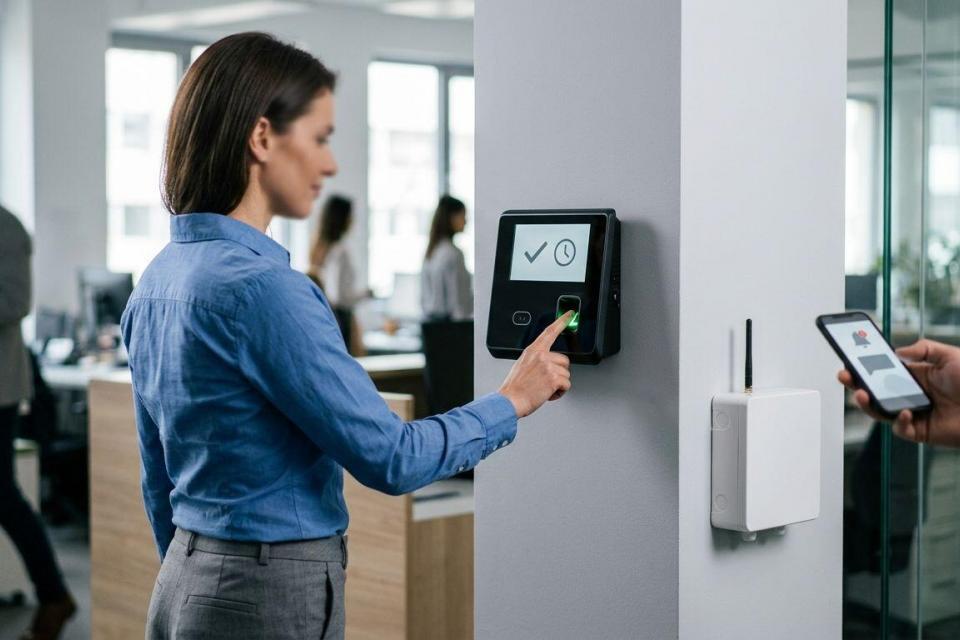
For zkteco fingerprint time attendance sms alerts, connect the reader’s verified attendance-event output to a compatible integration, then send a message through an SMS gateway. Instead of checking punch records manually, route each confirmed event to the right recipient and test the full path before relying on it.
- ZKTeco fingerprint time attendance SMS needs a verified event source, an integration and an SMS gateway; a reader alone is not enough.
- Patsecuritysolutions is a fit for Kenyan businesses sourcing access-control equipment and installation, but SMS compatibility must be confirmed for the chosen setup.
- Send alerts only for confirmed attendance events, and test duplicates, missed punches and delivery failures before rollout.
Why this matters
An attendance record on a reader is not the same thing as a delivered SMS. The reader must make the event available, an integration must decide whether that event qualifies for an alert, and an SMS service must accept the message. If any part is missing, staff can still clock in while recipients receive nothing.
The first buying question in 2026 is not whether a reader has a fingerprint sensor. It is how your exact reader and attendance software expose verified punch events. If you are still choosing equipment, compare biometric time attendance systems in Kenya before designing the alert. Confirm the connection method with the supplier for the exact model and software version; the category name alone does not establish SMS support.
Patsecuritysolutions supplies access-control and biometric equipment for businesses seeking security installations. For this workflow, treat the equipment, attendance software, integration and messaging service as separate parts. Ask who will configure and maintain each part before you buy.
Before you start
- Identify the exact reader and software. Record the model, firmware version, attendance application and the account that can inspect event records. Check the documentation for your installed versions, not instructions for a different ZKTeco model.
- Confirm an authorised event path. You need documented access to attendance events through your existing software or another supported connection method, plus permission to configure that connection. A report you can download manually does not, by itself, establish an automatic alert path.
- Prepare messaging and recipients. Have an SMS gateway account or an approved SMS service, the authorised recipient list, and a test number. Decide whether alerts go to the employee, a supervisor or both before putting personal information in a message.
Pre-empt the setup blocker: some deployments store punches in attendance software without exposing a usable live event feed to your integration. Verify event access first. If you have only a scheduled export, build a scheduled summary rather than promising an immediate punch alert.
Choose the event path
There are two practical routes to assess: an event-driven connection that receives a punch when the installed system publishes it, or a scheduled connection that reads records your system makes available. Neither route is universal across ZKTeco readers. The supported option depends on the reader, software and permissions you actually have.
| Route | Best for | Advantage | Limitation |
|---|---|---|---|
| Event-driven connection | Teams that need alerts after each confirmed punch | Processes events as they become available to the integration | Requires a documented, accessible event output and a working connection |
| Scheduled record check | Teams whose system exposes records but not an event feed | Can work with an approved record source and a defined check schedule | Alerts wait for the next check; duplicate control is essential |
| Manual export and review | Teams validating records before automating messages | Lets an administrator inspect the source data first | Is not an automatic SMS attendance alert |
Use the event-driven route only when the installed system supports it. A scheduled check is a separate design, not a claim that the reader sends SMS. Manual export is a useful diagnostic starting point, but it does not satisfy a request for automatic alerts.
The diagram shows the units you need to verify. An event appearing on the reader is only the start; the message needs its own delivery and failure checks.
Configure reader events
- Confirm where punches appear. Make a test punch using an authorised test enrolment. Locate that record in the reader or the connected attendance application. Note the event time, the enrolment identifier and whether the record says entry, exit or another event type. Do not assume a displayed record is available to an external integration.
- Check the supported connection. In the documentation for your installed reader and software, find the section describing event access, integration or record export. Match its requirements against your available account permissions and network access. If the instructions describe a different model or software edition, stop and obtain the correct documentation.
- Set the time basis. Check the clock on the reader and the time used by the attendance application. Decide which timestamp the alert should display. If those clocks disagree, fix the clock configuration before writing alert rules; a correctly delivered message with the wrong punch time still causes confusion.
- Define the qualifying event. Decide whether to alert on every verified punch, only the first arrival, only an exit, or an exception calculated by attendance software. A raw scan is not automatically a late-arrival decision. That decision needs an approved schedule and a rule that applies it.
Expected result: you can point to a test attendance record, explain its timestamp and identify the documented method by which the integration obtains it. In 2026, do not proceed on the assumption that all ZKTeco fingerprint readers expose events in the same way.
Configure event delivery
- Connect the approved source to the integration. Use the connection method documented for your installed system and an account authorised for attendance records. Restrict access to the records needed for alerts. Do not use an administrator account in an unrelated messaging tool simply because it is convenient.
- Map the minimum fields. The integration needs an event identifier or another dependable way to recognise a previously processed record, a person identifier, an event type and a timestamp. Add a display name only if the recipient needs it. The SMS destination must come from an approved contact record, not from a guess based on the enrolment identifier.
- Set a duplicate rule. Treat a repeated delivery or a repeated check of the same source record as the same event. Store enough information to distinguish it from a genuinely new punch by the same person. Do not suppress every later event from that person; an arrival and an exit can both be legitimate.
- Define what happens when the source is unavailable. Record the last successfully processed event and check whether the connection can resume without skipping records. If the installed system provides no dependable replay method, flag the gap for manual review rather than silently marking attendance as complete.
Expected result: a test punch reaches the integration once with the correct person, event type and timestamp. Rechecking the same source record does not create another alert. This check matters whether the connection is event-driven or scheduled.
Configure SMS routing
- Choose the recipient rule. Decide who receives each kind of message. An employee confirmation and a supervisor exception alert serve different purposes; do not send every punch to every contact by default. Check that each destination number belongs to the intended recipient.
- Write a short message template. Include the information needed to identify the event, such as the employee’s approved display name, event type and recorded time. Avoid sending fingerprint data, enrolment details or unrelated personnel information. A message should report an attendance event, not expose the underlying biometric record.
- Connect the SMS service. Follow the selected provider’s current instructions for authentication, sender settings and message submission. Those labels differ by provider, so use its documented field names rather than copying settings from an unrelated guide. Keep credentials out of message templates and shared reports.
- Separate submission from delivery. Record whether the gateway accepted the message and, if the service supplies a delivery outcome, record that outcome separately. An accepted submission is not proof that the recipient received the SMS.
- Run an authorised test. Send a test event to the approved test number. Check the recipient, wording, event time and result reported by the messaging service. Then make another punch and confirm that the new event follows the same rule.
Expected result: the intended recipient gets a readable message for a qualifying event, and the administrator can distinguish a source failure from a messaging failure. For a 2026 deployment, document this test before adding the full recipient list.
Check receipts and exceptions
- Test a non-qualifying event. Create or select an event that your rule excludes. Confirm that the integration records its decision without sending an SMS. This protects recipients from a flood of messages during normal activity.
- Test a repeated record. Present the same source event to the integration again through its approved test method. Confirm that the recipient does not get a duplicate alert.
- Test a failed message. Use the SMS service’s supported test procedure to observe a rejected or failed submission. Confirm that an administrator can see the failure and that a later retry, if configured, does not generate duplicate messages.
- Review access and retention. Limit who can view attendance events, contact numbers and message logs. Keep the records your organisation needs for troubleshooting and remove access when a person no longer administers the system.
Expected result: the administrator can account for qualifying messages, excluded events and failed submissions. If the process cannot show what happened after a missed SMS, it is not ready to serve as the sole attendance notification method.
Send an alert when a record is updated
An updated attendance record is not the same event as a new fingerprint punch. A supervisor can correct a record, or attendance software can change a calculated status after the original scan. Send an update alert only if your installed software exposes record changes and your organisation has approved that use.
Use a separate rule for this variant:
- Identify the update source. Confirm that the software provides a documented way to read changed records. A punch-event connection does not necessarily report later edits.
- Choose the fields that justify an alert. A corrected time or changed attendance status can matter to the recipient; a routine internal edit might not. Define the distinction before enabling messages.
- Label the message as a correction. State that the attendance record was updated so the recipient does not mistake it for another fingerprint scan. Use the updated record’s approved time and identity fields.
- Keep an audit trail. Record which source change triggered the message and whether it was submitted to the SMS service. Do not overwrite the original punch notification in your troubleshooting log.
Expected result: a documented record change produces a clearly identified correction message, while an unchanged record produces no new alert. If the software does not expose updates, leave this variant off; do not simulate updates by repeatedly sending the latest record.
Troubleshoot missing or incorrect alerts
- The reader records a punch, but no event reaches the integration. Check the event-access method against the exact installed model and software. Then check the connection account and whether the punch appears in the source application. Do not debug SMS settings until the source event is visible to the integration.
- The same punch sends more than one SMS. Check whether the source redelivered the event or a scheduled check reread it. Make sure duplicate detection uses a dependable event identity rather than a person’s name alone.
- The message shows the wrong time. Compare the reader clock, software timestamp and time displayed by the message template. Correct the source or conversion rule; changing the SMS wording will not fix an incorrect event timestamp.
- The gateway accepts a message, but the recipient reports nothing. Check the destination number and the provider’s available delivery result. Treat acceptance and delivery as different states. Keep a manual route for urgent attendance exceptions when delivery cannot be confirmed.
- A correction looks like a new clock-in. Check which event type triggered the rule and whether your template labels updates separately. Disable the update rule until you can distinguish edited records from fresh punches.
Customise your workflow
Start with one approved event type and one test recipient. Once the end-to-end result is clear, add routing rules for other recipients or event types. Each new rule needs its own test: a working arrival alert says nothing about how an exit or corrected record will behave.
For a larger site, separate attendance notifications from door-access events. They can involve similar equipment but answer different questions: whether a person clocked attendance, and whether a door granted access. If you are planning both, review access control systems for offices in Nairobi before combining their reports.
Review the workflow when you change a reader, attendance application, integration account or SMS provider. Recheck the event source, recipient mapping, duplicate rule and failure log. In 2026, the dependable setup is the one your administrator can test after a change, not merely the one that sent a message on installation day.
FAQ
Can a ZKTeco fingerprint reader send attendance SMS alerts by itself?
Do not assume a ZKTeco fingerprint reader sends SMS by itself. Confirm the exact model and installed software’s event output, then verify the integration and SMS service needed for delivery.
What do I need for ZKTeco fingerprint time attendance SMS?
You need an accessible attendance-event source, an integration that applies your alert rules, an SMS service and approved recipient numbers. Test a real punch and the messaging result before rollout.
Are attendance SMS alerts instant?
Only describe alerts as immediate after verifying how your installed system makes events available and how the SMS service handles them. A scheduled record check waits for its next run, and message submission does not prove delivery.
Can I alert a supervisor about late arrivals?
Yes, if your attendance software or integration can apply an approved schedule to the punch record. A fingerprint scan alone does not establish that an employee is late.
Why did one punch trigger two messages?
The integration likely processed the same source record more than once or applied overlapping alert rules. Check the event identity, duplicate rule and recipient routing before enabling further alerts.
Can an edited attendance record trigger another SMS?
Yes, if the installed attendance software exposes updates and you configure a separate update rule. Label the message as a correction so it is not confused with a new punch.
What if the reader records a punch but no SMS arrives?
Check whether the integration received the attendance event before checking the SMS service. If it did, inspect the recipient mapping, submission result and any available delivery status.
One last thing
Test a missed message as deliberately as a successful one. Patsecuritysolutions can supply access-control equipment and installation, but the business still needs a named administrator for event access, SMS routing and failures. That ownership decision is what turns a 2026 test alert into a workflow you can maintain.
Related guides
- Biometric time attendance for factories and manufacturing plants
- Access control systems for small businesses in Kenya
- JVA energizer to instant SMS fence alerts workflow