 English
 WiFi Gate Motor Remote Control Setup: Safe Steps (2026)
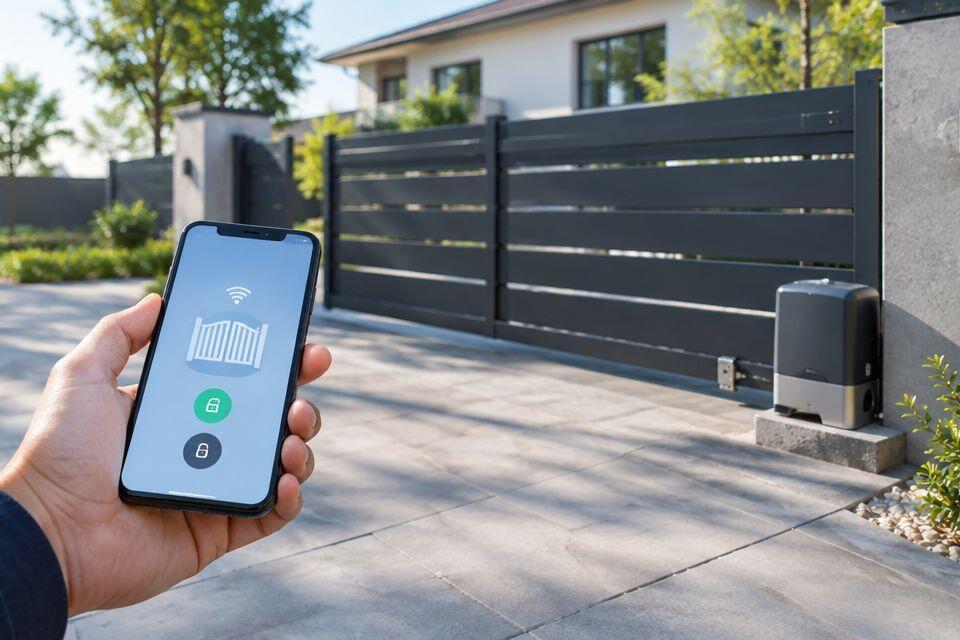
For a Wi-Fi gate motor remote control setup, first confirm that your motor supports app control or a compatible add-on controller. Then connect it to the network, pair the authorised phones and test the gate while you can see it. Instead of relying on a handheld remote for every entry, you can use a phone without bypassing the motor’s safety devices.
- For a Wi-Fi gate motor remote control setup, confirm motor compatibility before buying a controller or changing wiring.
- Use the motor’s supported app connection or a compatible controller; a handheld radio remote alone does not provide Wi-Fi control.
- Test opening, closing and obstruction protection at the gate before allowing remote operation away from the property.
- Patsec Security Store is best for Kenyan buyers sourcing gate equipment and installation, but motor-specific instructions still govern setup.
Why this matters
A gate can respond to a command without reporting whether it finished moving. That distinction matters when you are opening it from somewhere you cannot see. Treat a successful app tap as a command sent, not proof that the gate is closed. If you need confirmation, check whether your motor and controller support position feedback.
The right setup also depends on the gate itself. Choose the motor for the gate before choosing a phone-control accessory; this guide to automatic gate motors for homes covers that earlier decision. For a 2026 installation, ask the installer to identify the exact motor model and its supported control inputs before any accessory is connected.
Patsec Security Store supplies security equipment and installation for homeowners and businesses in Kenya. Its gate-equipment role is useful when you need a motor or installation support. The motor manufacturer’s manual, not a generic app walkthrough, decides which terminals and settings apply to your gate.
Before you start
- Identify the installed motor and control board. Record their model details and get the corresponding instructions. Check whether app control is built in or requires an approved accessory. A gate motor with a handheld radio remote is not necessarily Wi-Fi capable.
- Check the network and account. You need a phone, access to the property’s Wi-Fi settings and the account required by the supported app. Confirm which Wi-Fi bands the device accepts: support for 2.4 GHz does not establish support for 5 GHz, or vice versa.
- Check the gate’s safety devices and operating area. Make sure the gate can move without striking a person, vehicle or object. Keep its existing obstruction protection connected and working.
The setup gotcha: a controller that can trigger an open input cannot necessarily tell you whether the gate is open. Before buying an add-on, establish whether you need command-only operation or verified gate-position feedback. Those are different requirements.
If you cannot identify the motor’s approved connection method, stop before opening its enclosure. A qualified gate installer must confirm the wiring and safety arrangement. Do not use trial-and-error connections on a powered control board.
Choose the control method
| Option | Best for | What it does | Limitation |
|---|---|---|---|
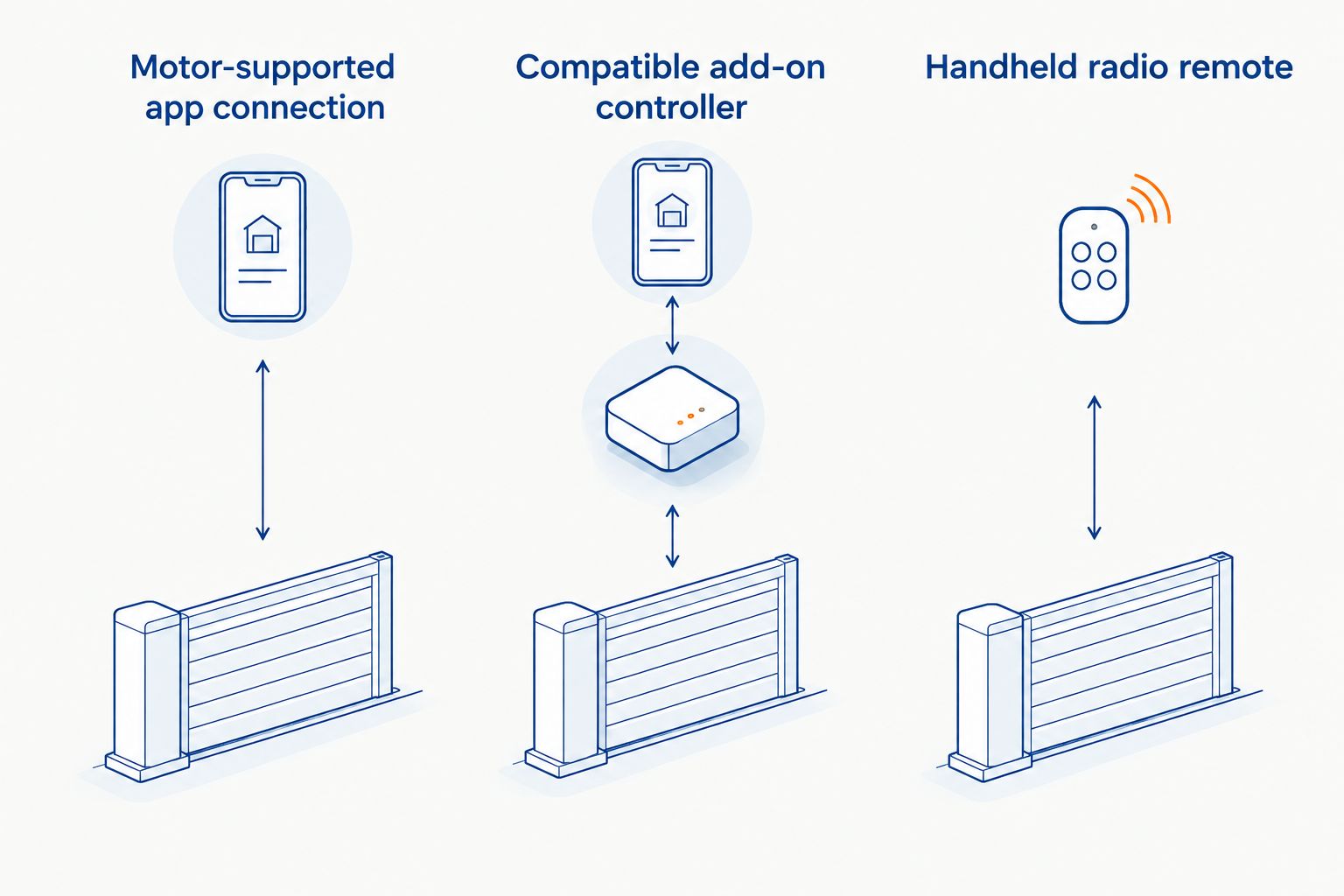
| Motor-supported app connection | A compatible motor with its specified app or network accessory | Sends commands through the motor’s supported control method | Features and remote access depend on that model and its service |
| Compatible add-on controller | An existing motor whose manufacturer permits an external control input | Sends a command through an approved connection | The motor and accessory must match; position feedback is not automatic |
| Handheld radio remote | Local operation without a phone | Sends a radio command to the gate receiver | It does not itself provide Wi-Fi or phone control |
Choose the motor-supported app connection when your exact model offers one. Choose an add-on only after an installer verifies the motor input, controller output and required safety behaviour. Keep a handheld remote as a local control option if your gate already uses one, but do not confuse it with internet access.
A phone on the property’s Wi-Fi and a phone using mobile data are different tests. Local network control does not prove that you can operate the gate from elsewhere. In 2026, confirm whether the supported system provides remote access before describing the finished setup as remote control.
Set up the motor-supported connection
Use this route only when the motor documentation identifies an app connection or a supported network accessory. Do not assume the instructions for another motor model apply, even if its casing looks similar.
- Find the approved setup path. Read the motor and accessory instructions for pairing, network requirements and account ownership. Have the installer complete any work inside the motor enclosure before you begin phone setup.
- Connect the supported device to Wi-Fi. Follow its documented pairing sequence using the property network it supports. If the app asks you to select a device or enter network credentials, use the model and network you have verified rather than a similarly named entry.
- Register the gate in the supported app. Complete the manufacturer’s account and device-pairing process. Restrict access to the people who actually need to operate the gate.
- Send a test command in view of the gate. Stand where you can see the full travel area. Test opening and closing, then check that the installed safety devices still operate as specified by the motor manufacturer.
- Test access from outside the property network. Disconnect the phone from the property Wi-Fi and use its mobile connection. If control works only on local Wi-Fi, check the system’s documented remote-access requirements rather than changing wiring.
Expected result: authorised phones can issue the supported command, and the gate completes its movement without losing its existing safety functions. If the app has no position feedback, do not treat a sent command as an open or closed status report.
Configure accounts and access
A working connection is not a finished installation if every user shares the same login. Account settings differ between systems, so use only the access controls shown in the supported app.
- Set the owner account. Use an account controlled by the person or business responsible for the property. Keep its recovery method current.
- Add other users through the supported sharing method. Give access only when the app offers a way to manage or revoke it. If sharing is unavailable, do not distribute the owner password as a substitute.
- Review notifications and status features. Enable only features your motor and accessory actually support. Check whether a notification reports a command, a measured gate position or a fault; the meanings are not interchangeable.
- Remove test access. Revoke access granted solely for installation once testing is complete, where the system supports revocation.
Expected result: the responsible owner can identify who has access and remove it through the supported account process. In 2026, include that check in the handover rather than treating app pairing as the last step.
Add a controller to an existing motor
A compatible add-on is the second route when the motor has no suitable built-in app connection. The installer must verify the control board’s documented input and the accessory’s output before connecting them. A generic controller listing does not establish compatibility with a particular gate.
- Identify the documented command input. Have the installer locate the correct connection in the exact motor manual. Do not bridge safety connections or guess from terminal positions on another board.
- Confirm the accessory’s command behaviour. Match its documented output and command duration to what the motor manufacturer requires. A permanent signal is not a substitute for a momentary command when the board expects a momentary command.
- Connect and secure the accessory. Have the installer isolate power and follow the manufacturers’ installation instructions. Keep the accessory and wiring protected as specified for their installed location.
- Pair the controller to the network and app. Use the accessory maker’s documented process, then assign the owner account and any supported user permissions.
- Test every operating condition. Watch a full opening and closing cycle. Check the gate’s existing obstruction protection and confirm what the app reports when the gate does not complete a movement.
Expected result: the controller sends an approved command to the motor without defeating safety functions. If it provides no independent position sensing, the app still cannot confirm that the gate finished closing. Patsec Security Store can supply gate equipment and installation; ask for compatibility to be checked against your installed motor before choosing an add-on.
Troubleshooting
- The device will not join Wi-Fi. Check the supported Wi-Fi band, network credentials and signal at the controller’s installed position. Do not infer compatibility from the fact that your phone connects to the same router.
- The app works on Wi-Fi but not on mobile data. Confirm that the system supports off-site access and that its required account or gateway connection is active. Local-only operation cannot be fixed by repeatedly pairing the motor.
- The app responds but the gate does not move. Check for a motor fault or safety-device condition using the motor’s own indicators and manual. Ask the installer to verify the documented control connection; do not bridge an interlock to force movement.
- The gate moves but the app shows no reliable status. Determine whether the installed system has position feedback. A command acknowledgement is not a position sensor; use a supported feedback method if confirmed status is required.
- A previously authorised phone stops working. Check its account permission, app sign-in and network connection before resetting the gate controller. Resetting can disrupt other authorised users.
Do the first movement test in view of the gate after any wiring, account or network change. That includes changes made during routine maintenance in 2026. A connection test alone does not check the physical gate.
Customize your workflow
Decide what the property needs beyond a phone command. For a home driveway, that means identifying who can open the gate and how you will check it has closed. For a business entrance, decide who owns the account and how access is removed when someone no longer needs it. Use the supported app’s permissions rather than a shared password where individual access is available.
If you need a record of gate position, specify that before buying equipment. Ask whether the exact motor and proposed controller support a position sensor or documented feedback input. If you need local operation during an internet outage, confirm the motor’s supported local control method separately. Remote access, local control and position confirmation are three separate functions.
Patsec Security Store is best for Kenyan buyers who need gate equipment alongside installation support. It is not a substitute for checking the installed motor’s manual: give the installer the model details, the control method you want and whether you require confirmed gate status. That is a clearer 2026 brief than asking for Wi-Fi control alone.
FAQ
How do I set up Wi-Fi remote control for a gate motor?
Confirm that the exact motor supports an app connection or a compatible controller, then follow its documented pairing process and test the gate in view. Check off-site access separately using mobile data.
Can I turn any gate motor into a Wi-Fi gate motor?
No. An add-on controller must match a documented control input on the installed motor, and an installer must verify the connection and safety behaviour.
Does a handheld gate remote work through Wi-Fi?
No. A handheld radio remote and a Wi-Fi-connected phone controller use different control methods. Owning a radio remote does not establish app compatibility.
Why does my gate app work at home but not elsewhere?
Local Wi-Fi operation does not establish off-site access. Check whether the supported system requires a gateway, internet connection or account feature for control over mobile data.
Can an app tell me whether my gate is closed?
Only if the installed system supports reliable gate-position feedback. A confirmation that a command was sent does not prove the gate completed its movement.
Should I wire a Wi-Fi controller into the gate motor myself?
Use a qualified gate installer when the work involves identifying or connecting motor-control terminals. The exact motor and accessory manuals determine the approved connection.
What should I test after pairing a gate motor app?
Test opening and closing while you can see the gate, check its existing safety devices and try the supported off-site connection using mobile data. Also verify what the app reports when movement does not complete.
One last thing
Ask for gate-position feedback before asking for extra app features. A simple open command is useful, but it does not settle the question you face when you are away: did the gate actually close? Make that distinction explicit in your 2026 installation brief.
Related guides
- Sliding gate motors for compounds
- Automatic gate systems for real estate developers
- Access control kits for apartment buildings